
Your Enrolment

Before you begin your programme, you must enrol as a student at Birmingham Newman University.

Enrolment will be a 2-stage process:

  1. You will be required to complete a pre-arrival task online via the applicant portal prior to attending the University
  2. During induction you we be required to bring photo-ID with you to complete enrolment on campus

Take a look at our step-by-step guide to the enrolment process below.

You will be sent a notification email that includes a link complete the pre-arrival task online via the applicant portal.

Enrolment for 2026

Online pre-arrival task will open from:

  • Friday 14 August – All September starting courses

If you have met all of your conditions of entry you will be sent a notification email that the pre-arrival task is ready for you to complete via the applicant portal.

Once you have completed the pre-arrival task online you will be emailed your student login details, which can then be used to access your timetable and Birmingham Newman email ready for the start of your course.

To complete enrolment, you will need to attend your first induction event with your photo ID. Details of your induction events are on the welcome course pages.

International students

Please note that it is a requirement for all international students to enrol in person. You will need to complete the pre-arrival task but will not receive your student login until after in-person enrolment on campus. You will need to attend the same in-person induction events as other students on your course to complete enrolment.

Enrolment process

Below is the process outlined in more detail, including advice on what you can do now to get ready.

If you have any difficulties with any part of the enrolment task please email enrolment@newman.ac.uk. Most enquires can be resolved via email.

However, once the on-campus induction and enrolment activities have begun, you can also visit the University’s Student Helpdesk in St Chads Atrium for support completing the enrolment process.
Step 1: Before you enrol

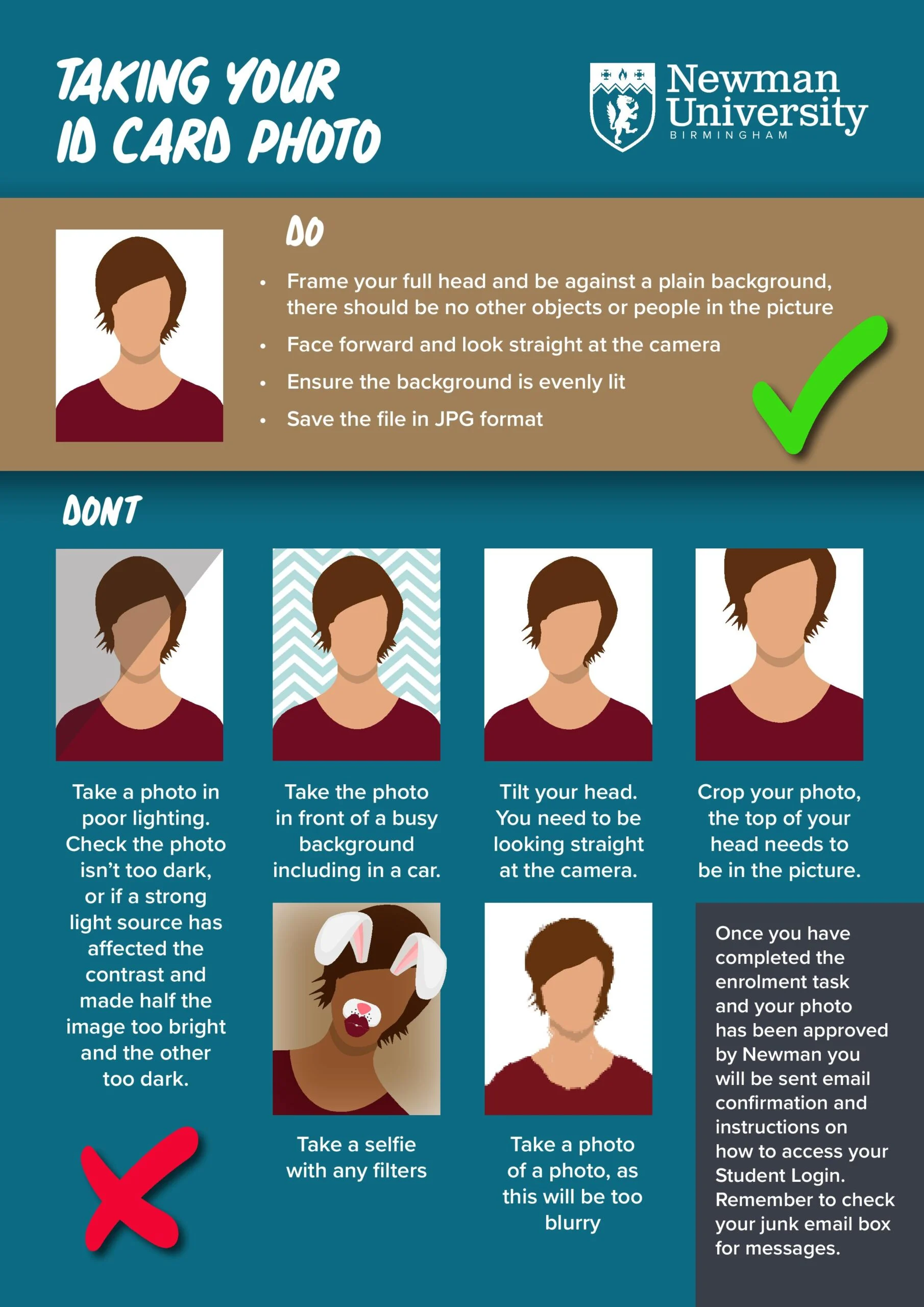
Before enrolment make sure you can log into your applicant portal and read the photo guidelines and create your photo ready to upload.

Please refer to our pre-enrolment FAQs below for more information about photo suitability and accessing the applicant portal.

Step 2: Pre-arrival task

On the date your pre-arrival task opens you will receive an email with a link to the applicant portal.

You will be asked to check that the information we hold is correct, confirm tuition fee liability, sign up to the University’s regulations declarations and to also upload a photo.

Step 3: After completing the Pre-arrival task: Student IT account login

Once you have completed the pre-arrival task and your photo has been approved, you will receive an email with your student login details.

The IT team release new student login emails at 9am to 1pm each working day (but not at the weekends).

This timing is so that they can be available to support you should you need help setting up your login when you receive the email.

For support setting up your student login please contact IT Services on 0121 387 4593 or email itservicedesk@newman.ac.uk.

Once you have received your student login, you can login to OurNewman. You will need to reset your password before logging in for the first time.

Step 4: Accessing your timetable

Each student studying on campus at the University has a personalised timetable available to them via their Birmingham Newman University email calendar.

Use your student login to access OurNewman and your Birmingham Newman email account.

Step 5: Enrolment: ID verification

To enrol please bring with you photo ID such as your passport or driving licence to your first on campus day during Welcome Week induction.

Your identity needs to be verified before we can fully enrol you on your courses. Following enrolment, we will then confirm your attendance to Student Finance (SLC).

If you do not have one of these documents, then we will accept a Voter Authority Certificate. If you do not already have this, you can request it for free from the government website:

Pre-enrolment FAQs

Why am I unable to log into the Applicant portal?

It is important that before enrolment you check that you are able to login and can access your online Applicant portal. If you have forgotten your password, you will be able to reset your password on the portal login page.  This will then send an email with a link to reset your password.

You should receive this email within a couple of minutes of requesting to reset your password and the link in the email will remain active for 30 minutes. If it does not appear in your inbox, please check your Spam folder. If you have never used the applicant portal you will also need to go to the login page and set your password as a new user. If you have any further problems, contact details for IT can be found on the login page.

Is my picture suitable?

To make completing your pre-arrival task as smooth as possible we recommend having a suitable picture ready before beginning.

  • Your photo must show your full head and be against a plain background, there should be no other objects or people in the picture.
  • You should face forward and look straight at the camera.
  • The file should be in JPG format.
  • The file size should not exceed 20KB and the dimensions should be 150 pixels wide and 200 pixels high. You may find image resizing websites useful for editing your photo to the specification above.

If your photo is not suitable, we will email you and ask you to reload your photo in the correct format. This will delay you receiving your student ID card.

Common reasons why your photo may be assessed as unsuitable for your university record:

  • It is a selfie with filters applied (including beauty filters)
  • It has other people in the picture
  • It is a cropped photo from group shots
  • It is a photo of a photo, as this will be too blurry
  • Taken in front of a background that isn’t empty and plain (e.g. inside a car)
  • Poor lighting. This can either be the photo imagine was too dark, or a strong light source had affected the contrast and had made half the image too bright and the other too dark.  This can also affect the background, making a plain background look patterned or different colours.
  • There is too much head tilt. You need to be looking straight at the camera.
  • Part of the head is missing. The full face, including top of head needs to be in the picture.

View our helpful ID Photo Guidelines.

Pre-arrivals tasks will open on specific dates for different courses, details of which are available at the top of this page.

The email will be sent to the email address you provided in your application, if you are not receiving our emails please check your spam folder before contacting the Registry Support Team on 0121 387 4583 or enrolment@newman.ac.uk.

What ID can I bring if I don’t have a passport or driving licence?

Ideally the university needs to see photo ID such as a passport or driving licence (this can be a provisional driving licence). If you do not have one of these documents, then we will accept a Voter Authority Certificate. If you do not already have this you can request it for free from the government website:

Alternatively, you would need to bring a combination of documents. That is, your birth certificate and proof of your current address.

If your birth certificate is in a different name to which you currently use, you will need to bring your change of name document as well. For example, a marriage certificate or change of name deed poll. Examples of accepted proof of address are bank statements, utility bills, Council tax bills, voting registration card. These need to have been received at your home through the post and not printed from a computer. It is the act of receiving it through the post which proves you live at the address.

Pre-arrival task tutorial video – coming soon

A step-by-step tutorial video is currently being prepared and will be available soon. Until then, please follow the instructions on this page to complete your enrolment.

Instagram does not support direct link sharing, below is the page URL to copy to add to Instagram posts manually: